How to set up SimAggregator for Windows and connect your modems
A step-by-step guide to the SimAggregator program for Windows. Install it, sign in, connect USB modems or a modem pool and put their numbers on sale.
SimAggregator for Windows is the program for a computer with USB modems or a modem pool. It finds the modems, reads their SIM cards and passes incoming SMS and code calls to the platform. You work with it in a browser: every modem is a row in one table.
This guide describes version 5 of the program, which signs in through your supplier cabinet.
What you need
- A computer with 64-bit Windows 10 or 11 that stays switched on and connected to the internet.
- USB modems or a modem pool with SIM cards, connected to that computer. Install the modem manufacturer's drivers first: Windows has to show every modem as a COM port in Device Manager.
- A supplier account that has finished registration in the cabinet.
- Administrator rights on the computer. The launcher needs them, and Windows asks you to confirm when it starts.
The program recognises these modem models: Quectel EC20F, EC21, EC25, EC200T, UC15, UC20, UC200T, UG96, M25, M26 and M35; SIMCom SIM800C, SIM868, SIM5320E, SIM5360E and SIM7100E; Huawei E173, E303 and MU509; ZTE MF100, MF110, MF190, MF193, MF627, MF636 and MF710; Cinterion MC55i; Wavecom Q24 Plus. A modem that the program does not recognise does not appear in the table.
Step 1. Install the program
The program is installed by a small file, SimAggregatorSetup.exe. It puts the launcher on the computer: a small program that downloads SimAggregator itself, keeps it up to date and starts it.
- In the cabinet open Download software and click Download on the Modem software card. You get the file
SimAggregatorSetup.exe. - Run the file. If Windows shows the blue window Windows protected your PC, click More info and then Run anyway.
- In the SimAggregator Setup window click Install. Windows asks whether to let the installer make changes on the computer: answer Yes.
- Wait while the installer works. If the computer does not have the Microsoft .NET components that the launcher needs, the installer downloads them from Microsoft and installs them, so keep the internet on. This can take several minutes.
- A window named Installation asks Do you want SimAggregator to start on Windows Startup? Choose Yes to add the launcher to Windows startup. If it still does not open by itself after you sign in to Windows, open it from the shortcut.
- When the installer shows Installation Successfully Completed, click Close. If the installer says that the computer must be restarted, restart it before you open the launcher.
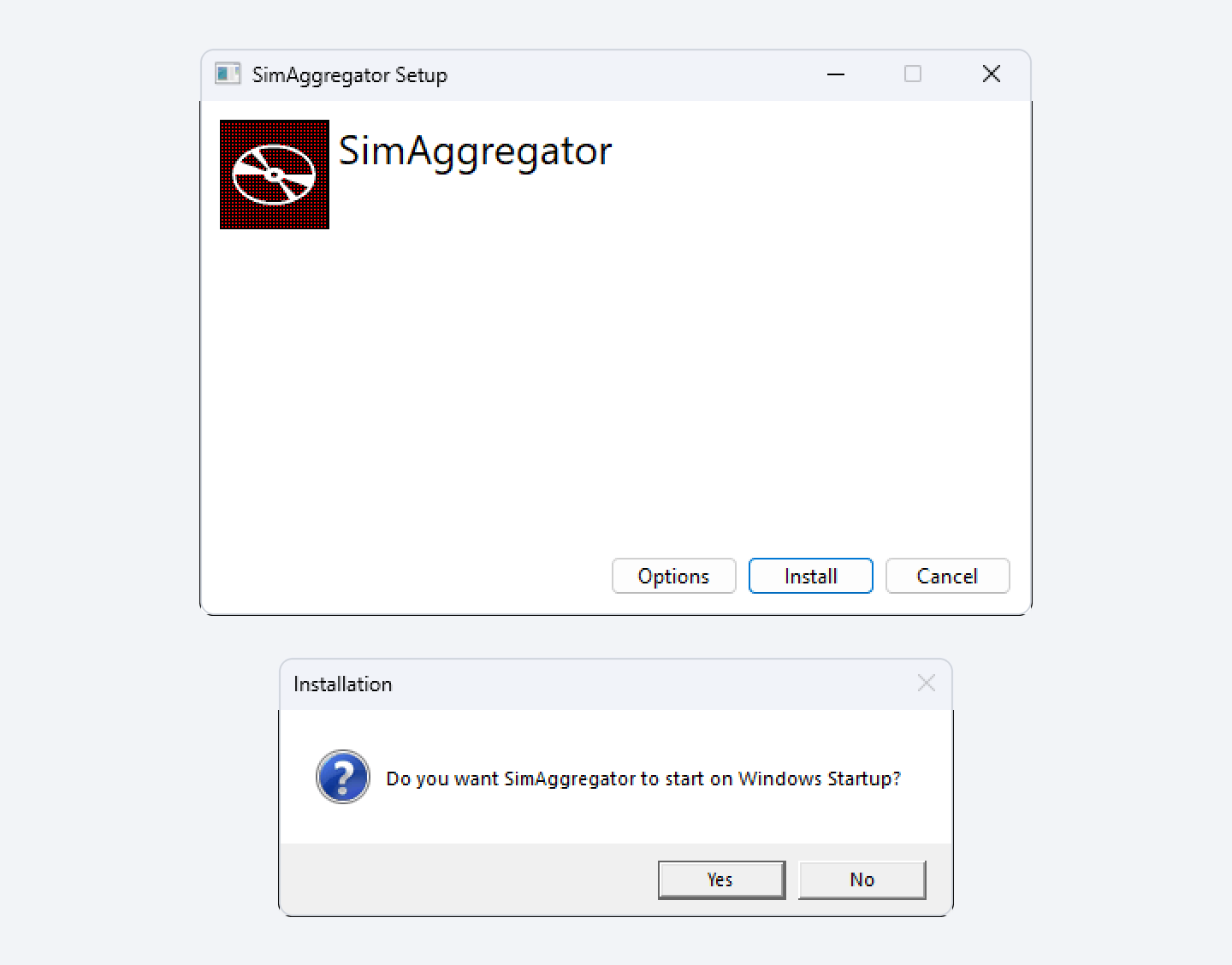
The launcher is installed in the Program Files folder, normally C:\Program Files\SimAggregator\SimAggregatorLauncher: the Options button does not change this folder. After the installation the SimAggregatorLauncher shortcut is on the desktop and in the Start menu.
To remove the program later, open Apps in Windows Settings, find SimAggregator and choose Uninstall.
Step 2. Start the program
- Open SimAggregatorLauncher. Windows asks whether to let it make changes on the computer: answer Yes.
- The launcher shows Initializing.... On the first start, and whenever a new version is out, it then downloads the program (Updating the app...). Wait until the download is finished. The launcher needs the internet at every start: it checks for a new version before it starts the program.
- When the launcher shows the version and the line Server is running at:
http://localhost:5000, click Open UI. The program opens as a page in your browser.
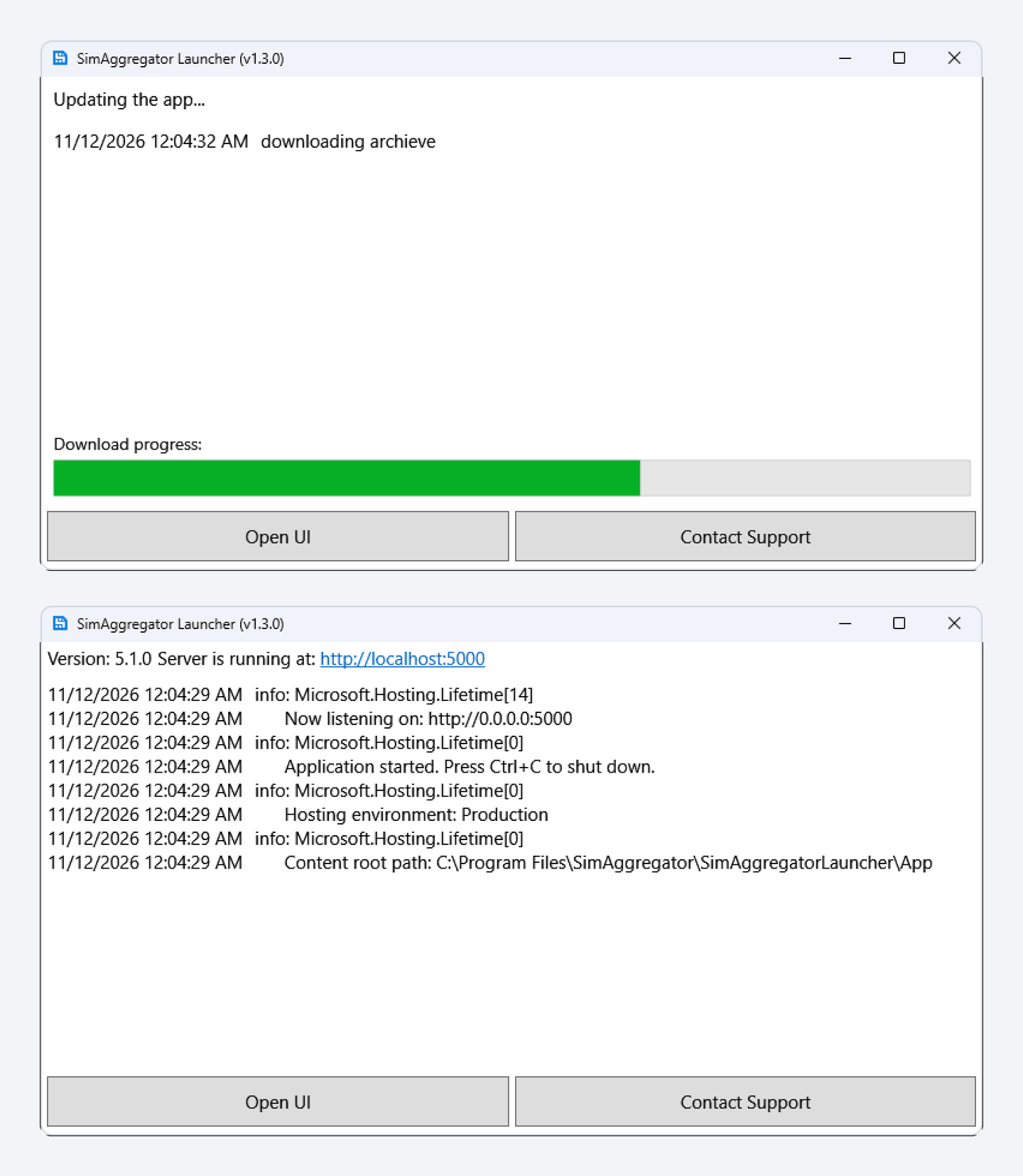
The lines with dates in the launcher window are a technical log. You do not need them in everyday work.
If port 5000 is busy, the launcher takes the next one, for example 5001. Use the address that the launcher shows.
Closing the launcher window does not stop the program. The launcher hides in the notification area next to the clock and keeps working. To stop the program completely, right-click its icon there and choose Exit.
Step 3. Sign in
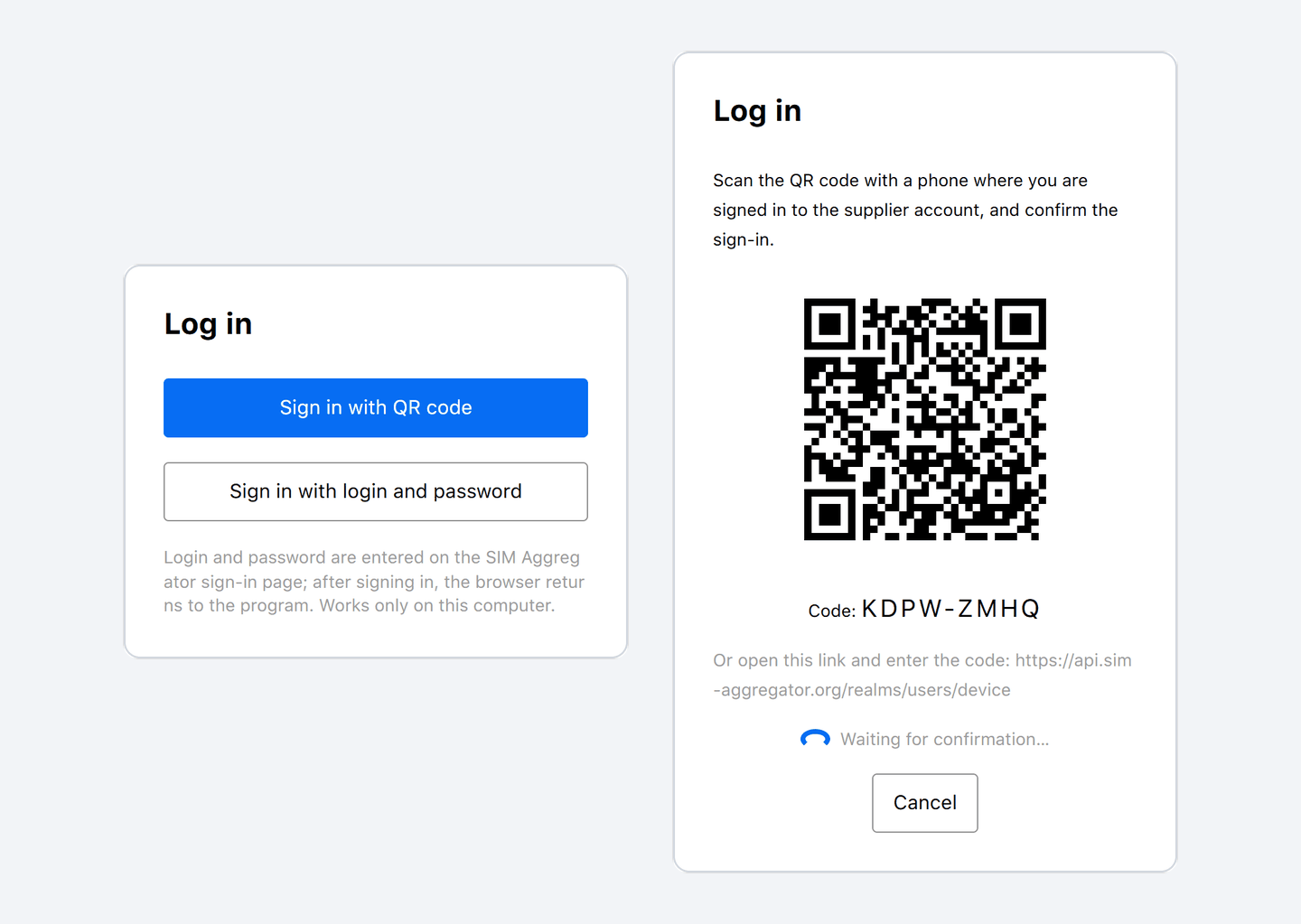
The program opens on the Log in page with two buttons.
Sign in with QR code. The page shows a QR code and a code. They are valid for 10 minutes.
- Scan the QR code with a phone on which you are signed in to the supplier cabinet. If you are signed in to the cabinet in the browser on this computer, click the QR code instead. The link under the QR code opens the same page without the code: type the code there yourself.
- On the confirmation page click Allow.
- Return to the program. It finishes signing in by itself.
Sign in with login and password. The browser goes to the SimAggregator sign-in page. Enter the email and password of your cabinet there, and the browser returns to the program. The program never sees your password. This way works only on the computer where the program is installed, on the page that Open UI opens.
Step 4. Check the modems
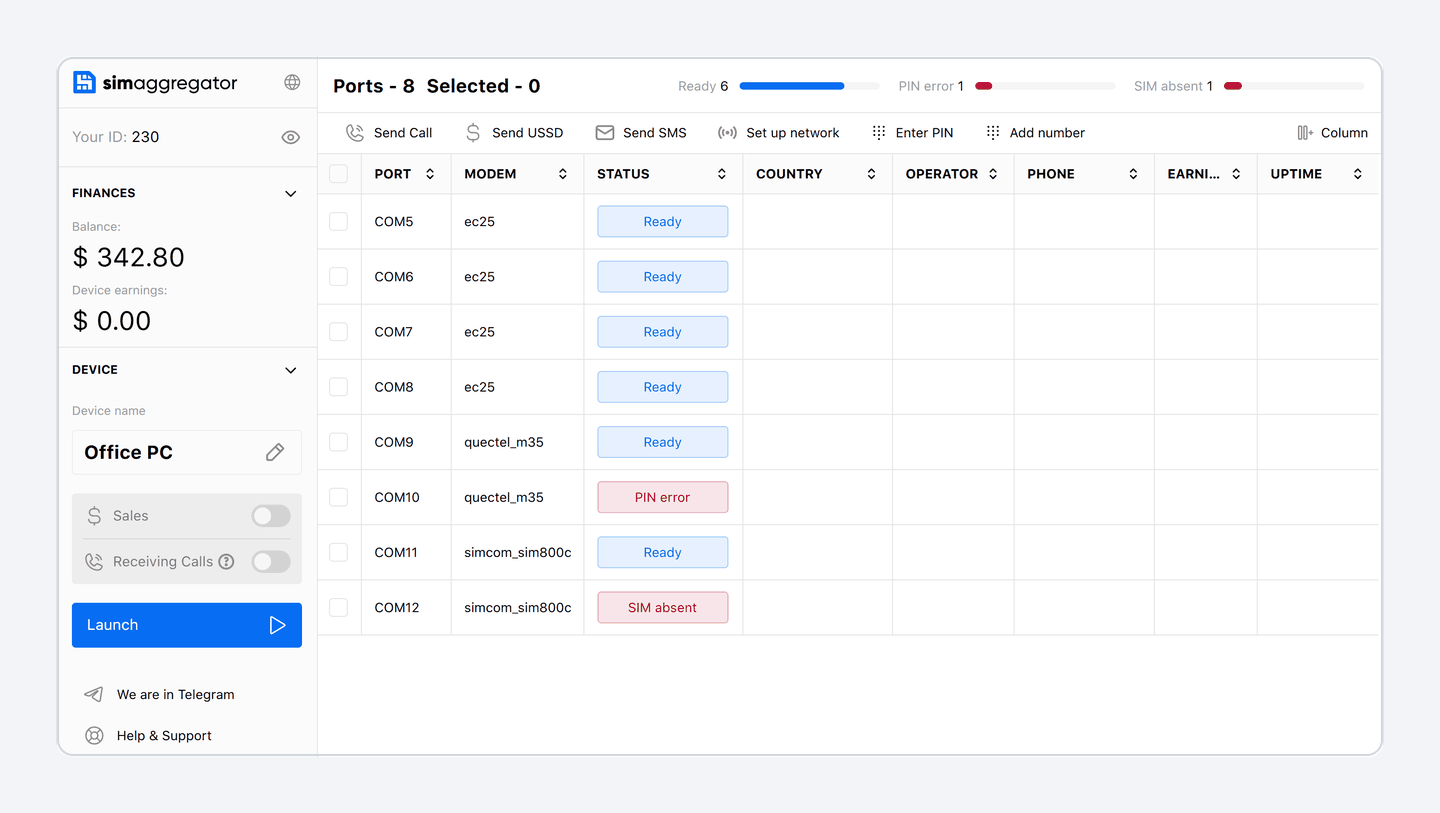
After you sign in, the program looks for modems by itself. There is no search button. Recognised modems appear in the table one by one, each as a row with its port, its model and a status. This can take a minute. Wait until the status of the modems is Ready.
Before you start work, look at Device name in the Device block on the left. It is the name under which this computer is shown in the cabinet. Click the pencil to change it. The name cannot be changed while the program is working.
If a SIM card asks for a PIN
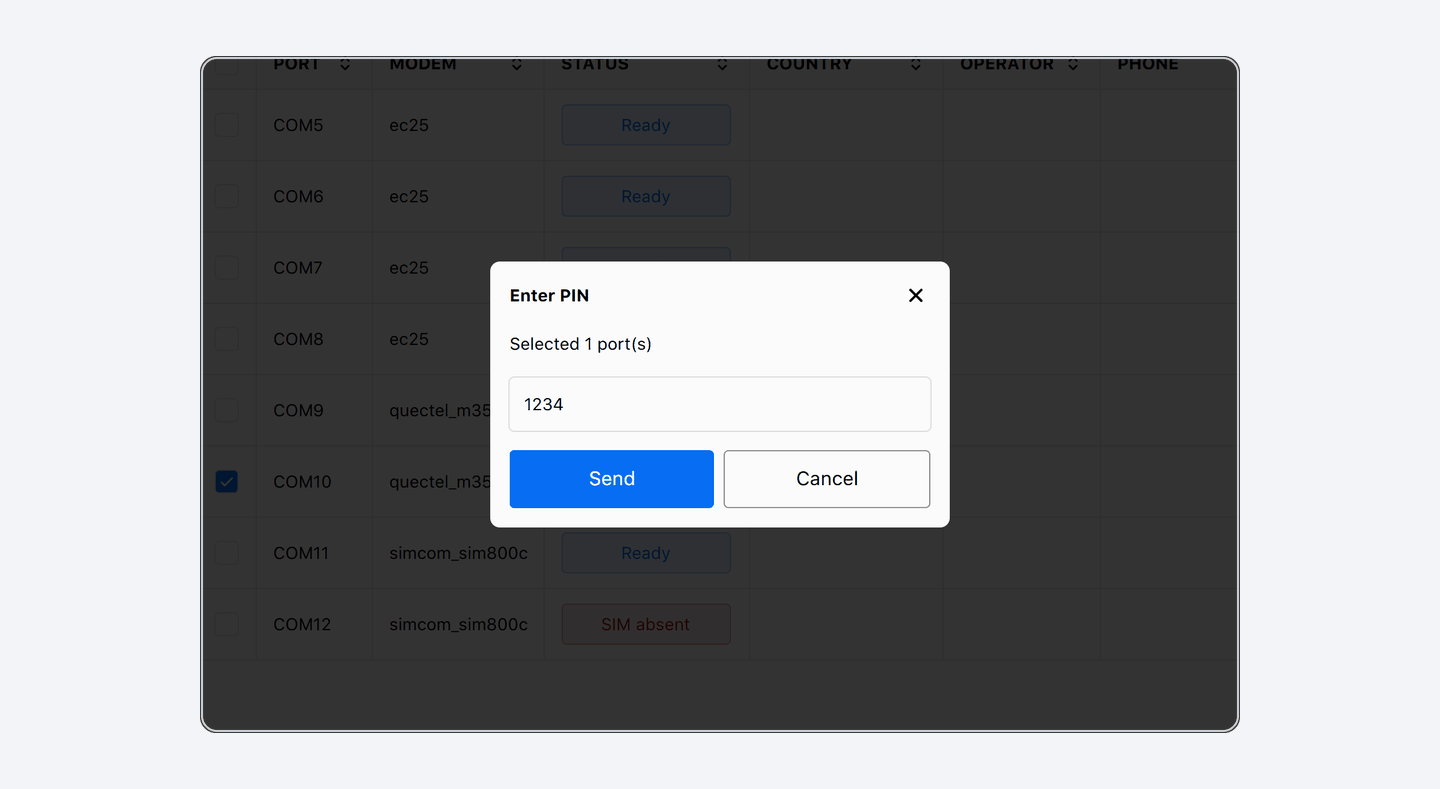
A SIM card that is locked with a PIN has the status PIN error.
- Tick the ports with such SIM cards in the first column.
- Click Enter PIN, type the PIN and click Send. The same PIN goes to every ticked port.
- Watch the Status column. After a correct PIN the program tries to switch the PIN request off on that SIM card, so that it does not ask again.
The program cannot enter a PUK code. If the status is PUK required, put the SIM card into a phone and unblock it there.
Step 5. Start work
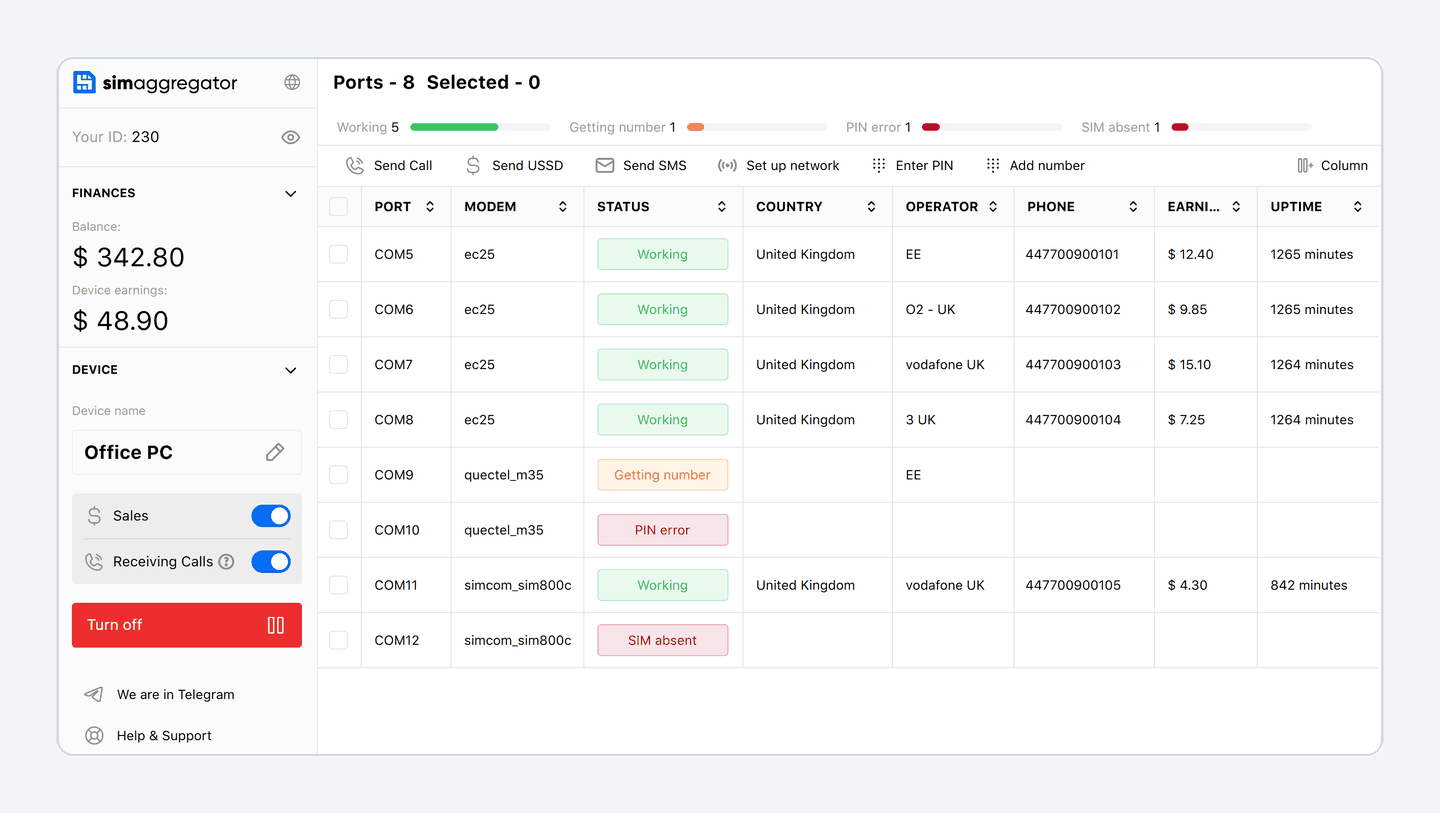
Click Launch. The program switches on Sales and Receiving Calls. Each modem registers on the mobile network, finds out its number and changes to Working. A number is on sale while its modem is Working and Sales is on.
- Sales puts the numbers on sale and reads incoming SMS. Switch it off to take the numbers off sale without stopping the program.
- Receiving Calls accepts calls in which a robot reads out a code. It works only on modems that support voice calls and only while Sales is on.
- Turn off stops the work. To take the numbers off sale at once, switch Sales off about half a minute before you click Turn off.
If a number is not detected
The program finds out the number of each SIM card by itself: it reads it from the SIM card, takes it from the platform's directory or asks the mobile operator. While it is doing that, the status is Getting number.
If the status does not change, enter the number yourself. Point at the Phone cell in that row, click the pencil, type the number in international format with the country code and press Enter. The country of the number has to match the country of the SIM card. If the row shows Getting number again after the program restarts, enter the number once more. If the number does not appear even after that, the platform does not know the operator of this SIM card yet: write to support.
To add many numbers at once, click Add number, paste a list in which every line holds the ICCID of a SIM card and its number, separated by a comma, a semicolon or a tab, and click Save.
Step 6. Check the cabinet and set prices
Open Devices in the cabinet. The computer is in the list as one device under the name from Device name, and each modem is a port of that device.
Numbers are sold at your prices. Set them in Prices. The article How to set your first price explains where to start.
What the statuses mean
Statuses in the table are always written in English.
| Status | What it means | What to do |
|---|---|---|
| Ready | The SIM card is ready, but work is not started or Sales and Receiving Calls are both off | Click Launch or switch Sales on |
| Working | The modem is working. With Sales on, its number is on sale | Nothing |
| Getting number | The program is finding out the number | Wait, or enter the number yourself |
| Connecting to port, Detecting SIM, Entering PIN | The modem is starting up | Wait |
| Searching for network, Registering on network | The SIM card is connecting to the mobile network | Wait |
| No sales | The modem has not completed a sale cycle for 5 minutes | Check that Sales is on |
| SIM absent | There is no SIM card in the modem | Insert a SIM card |
| PIN error | The SIM card asks for a PIN, or the modem is locked to another operator | Enter the PIN. A locked modem needs a SIM card of its own operator |
| PUK required | The SIM card is blocked after wrong PINs | Unblock it with the PUK in a phone |
| No signal | The modem has no signal | Check the antenna and the coverage |
| Network access denied | The operator refused to register the SIM card | Check that the SIM card is active and has a positive balance |
| Modem stuck | The modem has not finished its work cycle for 5 minutes | Reconnect the modem |
| Port error | The program cannot open the port | Reconnect the modem and close other programs that use the port |
Long status names may not fit into a narrow column. Drag the edge of the column header to make it wider, or click Column to hide the columns you do not need.
Everyday use
- Updates. The launcher installs a new version when it starts. If a version comes out while the program is working, A new version is available appears at the bottom of the left block. Click Update: the program restarts and continues to work by itself.
- After a restart. If work was started, the program starts it again by itself the next time it opens.
- Another device. You can open the program from another device in the same local network at
http://<IP address of the computer>:<port>, with the port that the launcher shows (5000 by default). From another device you can sign in only with the QR code. If the page does not open, check that Windows Firewall allows incoming connections to this port. Anyone in that network can open this page, so use it only in a network you trust. - Signing out. Click Turn off first, then Log out. The numbers go off sale and the program releases the modems. If Update is shown in place of Log out, update the program first.
- Notes. In the Note column you can write a short label for each port, for example the shelf or the tariff.
- Language and theme. The language (English or Russian) and the dark mode are switched at the bottom of the left block.
If something goes wrong
| What you see | What to do |
|---|---|
| The launcher stays on Initializing... | Check the internet connection. The launcher has to reach the update server before it starts the program. |
| Couldn't contact the server on the program page | The page cannot reach the program. Check that the launcher is running and open the address it shows. |
| Start the device to see the modems and an empty table | If modems do not appear within a minute, check that Windows shows them as COM ports, close other programs that use these ports, and check the list of supported models. |
| This account has no supplier profile yet. | Finish registration in the cabinet and sign in again. |
| The code has expired. Get a new one. | Click Sign in with QR code again and confirm within 10 minutes. |
| Sign in with login and password works only on this computer. | On another device sign in with the QR code. |
| This action is not applicable while the application is running | Click Turn off first. The name and signing out are locked during work. |
| The application needs to be started | Click Launch first. |
| The program has been updated: sign-in by token no longer works. | You updated from an older version. Sign in again as in step 3. If work was started before, the program resumes it by itself; otherwise click Launch. |
| Access for this program was revoked in the supplier account. | Sign in again as in step 3. If work was started before, the program resumes it by itself; otherwise click Launch. |
| After signing in with a password the language or the table settings are reset | The page reopened at the address 127.0.0.1 instead of localhost. The browser keeps settings for these addresses separately. Set them once more. |
If this did not help, write to support. The contacts are in the Help center.
Connecting a phone instead of modems? See How to set up the SimAggregator app on an Android phone.